
What Is Google Search Console? A 2026 Guide
Google Search Console is a free service from Google that gives website owners verified, authoritative data about how their site performs in Google Search, including AI-powered results like AI Overviews and AI Mode. No third-party tool estimates or guesses. The data comes directly from Google’s indexing system, which makes it the most reliable source for diagnosing SEO issues and tracking search visibility. If you manage a website and you are not using it, you are flying blind. This guide covers setup, core features, data interpretation, and the new AI search controls added in 2026.
What is Google Search Console and why does it matter?
Google Search Console, often abbreviated as GSC, is Google’s own platform for monitoring and managing a site’s presence in search results. It reports on impressions, clicks, click-through rate (CTR), and average position for every query that surfaces your pages. It also flags indexing errors, Core Web Vitals failures, and crawl issues before they quietly drain your traffic.
What separates GSC from third-party SEO tools is the source of its data. Direct access to Google’s indexing eliminates the estimation errors that external crawlers introduce. When GSC says a page is not indexed, that is a fact, not a probability score.

The tool also covers the new AI-driven search formats. Since june 2026, GSC tracks impressions and clicks from AI Overviews and AI Mode separately, giving you a clear picture of how generative search affects your traffic. That visibility alone makes it worth setting up today.
How to set up and verify your site in Google Search Console
Access to GSC requires proving you own the site. Site verification is mandatory and prevents anyone from accessing your sensitive search data without authorization. There are two main verification methods.
Domain verification covers all subdomains and protocols under one property. You add a DNS TXT record to your domain registrar, and Google confirms ownership. This is the preferred method for most website owners because it captures all traffic in one view.
URL prefix verification covers a specific URL and protocol, such as https://www.example.com. It offers more options: HTML file upload, HTML meta tag, Google Analytics tracking code, Google Tag Manager, or a DNS record. Smaller sites or those with limited DNS access often use this route.
Once verified, you can add other users and control what they see. Primary owners have full control over user management and sensitive data. Standard users can view most reports. Restricted users see only specific data you allow. This permission structure matters if you work with an agency or a team.
Here is the setup process in order:
- Go to search.google.com/search-console and sign in with a Google account.
- Click “Add property” and choose Domain or URL prefix.
- Follow the verification steps for your chosen method.
- Wait for Google to confirm ownership, which usually takes a few minutes to a few hours.
- Submit your XML sitemap under the Sitemaps section to speed up indexing.
- Add any additional users and assign the appropriate permission level.
Pro Tip: If you manage multiple sites, create a separate Google account for GSC access rather than mixing it with personal accounts. This keeps permissions clean and makes agency handoffs much simpler.
What are the key features and reports in Google Search Console?
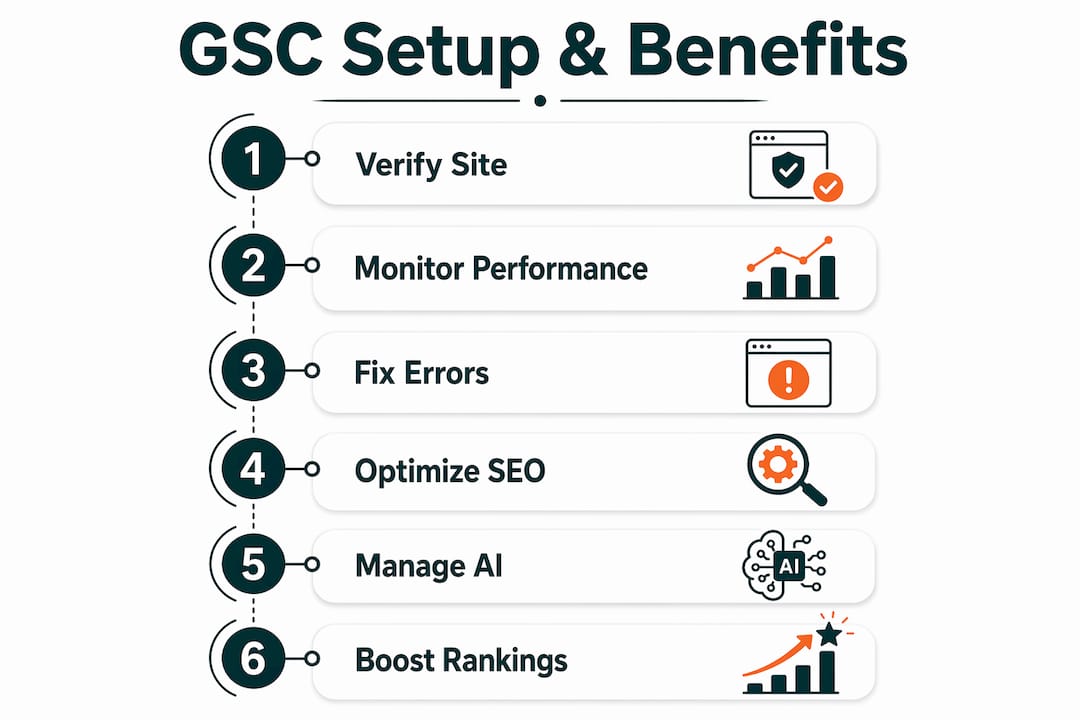
GSC organizes its data into several core reports. Each one answers a different question about your site’s health and visibility.
Core reports at a glance:
- Performance report: Shows impressions, clicks, CTR, and average position by query, page, country, device, and search appearance. As of 2026, it includes a separate filter for AI Overviews and AI Mode traffic.
- URL Inspection tool: Diagnoses any individual URL. It shows whether the page is indexed, how Google last crawled it, and whether there are any structured data or canonical issues.
- Coverage report (Index): Lists all pages Google has crawled, broken down by status: valid, warning, excluded, or error. Errors here need immediate attention.
- Sitemaps: Lets you submit XML sitemaps and check how many URLs Google has discovered and indexed from each one.
- Core Web Vitals: Reports on Largest Contentful Paint (LCP), Interaction to Next Paint (INP), and Cumulative Layout Shift (CLS) for both mobile and desktop. These metrics directly affect page experience rankings.
- AI search controls: New in june 2026, these granular toggle controls let you opt in or out of appearing in AI Overviews and other generative AI features.
| Report | What it answers | Why it matters |
|---|---|---|
| Performance | Which queries drive clicks? | Identifies top content and ranking gaps |
| Coverage | Which pages are indexed? | Catches crawl errors and exclusions |
| Core Web Vitals | How fast and stable are pages? | Directly tied to page experience ranking |
| URL Inspection | Is this specific page indexed? | Diagnoses individual page issues |
| AI controls | Am I appearing in AI features? | Controls visibility in generative search |
Pro Tip: Filter the Performance report by “Search Appearance: AI Overviews” to see exactly which queries trigger AI-generated answers that include your content. This is the fastest way to spot where AI search is absorbing your impressions without delivering clicks.
How to interpret Google Search Console data alongside other tools
GSC tells you what happens before someone clicks. Google Analytics tells you what happens after. These two tools answer different questions, and confusing them leads to bad decisions.
GSC focuses on pre-click search metrics: impressions, clicks, and position. Google Analytics tracks what visitors do on your site after they arrive, including session duration, bounce rate, and conversions. You need both to understand the full picture.
Common discrepancies between the two tools are normal. GSC counts an impression every time your page appears in search results, even if the user does not scroll to see it. Analytics only records a session when someone actually lands on your site. The numbers will never match exactly, and that is expected.
Combining GSC with Looker Studio creates a reporting setup that most teams find genuinely useful. You can pull GSC data and Analytics data into a single dashboard, then build custom views that show both search visibility and on-site behavior side by side. This is especially helpful for content audits, where you want to see which pages rank well but convert poorly.
A few best practices for using these tools together:
- Use GSC to find pages with high impressions but low CTR. Then rewrite the title tag and meta description to improve click-through.
- Use Analytics to check whether pages with strong GSC rankings actually drive engaged sessions. High position with high bounce rate signals a content mismatch.
- Use Looker Studio to share clean, branded reports with clients or stakeholders without giving them direct GSC access.
- Cross-reference AI Overview impressions in GSC with traffic drops in Analytics to measure the real impact of generative search on your site.
How to use Google Search Console to improve SEO and manage AI search visibility
The benefits of Google Search Console come from acting on the data, not just reading it. Here is how to turn each report into a concrete improvement.
1. Fix indexing errors first. Open the Coverage report and filter for “Error” status pages. Common causes include server errors (5xx), redirect loops, and pages blocked by robots.txt. Each error is a page Google cannot show in search results. Fix the underlying issue, then use the URL Inspection tool to request reindexing.
2. Find quick-win keywords. In the Performance report, filter for queries where your average position is between 8 and 20. These pages are close to page one but not quite there. Adding more depth, improving internal links, or updating the content often pushes them into the top five. This is one of the fastest ways to grow organic traffic without creating new content.
3. Submit sitemaps and speed up indexing. GSC’s sitemap submission tells Google exactly which URLs to prioritize. For new sites or recently published content, this is the most direct way to get pages indexed faster. You can also use the URL Inspection tool to request indexing for individual URLs immediately after publishing. For context on how Google discovers and crawls new pages, the Google crawling process is worth understanding alongside your GSC setup.
4. Manage your AI search appearance. In june 2026, Google introduced opt-in and opt-out controls for AI Overviews and other generative AI features. If you opt out, your site will not appear in those features and will not receive traffic from them. If you opt in, you can track AI-specific impressions and clicks in the Performance report. The right choice depends on your traffic goals and how much of your content is being absorbed into AI answers without generating clicks. Understanding how AI search engines select citations helps you make a more informed decision here.
5. Monitor Core Web Vitals and fix poor URLs. The Core Web Vitals report groups URLs into Good, Needs Improvement, and Poor categories. Poor URLs get a ranking penalty. Click into any failing URL group to see the specific metric causing the issue, then pass that data to your developer. LCP failures usually point to slow server response or unoptimized images. CLS failures often come from ads or embeds that shift layout after load.
6. Use keyword data to spot cannibalization. When two pages rank for the same query, they compete against each other and neither ranks as well as it could. GSC’s Performance report shows you exactly which queries trigger multiple pages. Spotting keyword cannibalization early prevents you from diluting your own authority.
Pro Tip: Set up email alerts in GSC for manual actions and security issues. These notifications arrive faster than you would catch them in a weekly report review, and both issues can tank rankings overnight if left unaddressed.
Key Takeaways
Google Search Console is the definitive free tool for monitoring search performance, fixing indexing issues, and controlling your site’s visibility in both traditional and AI-powered Google Search.
| Point | Details |
|---|---|
| Verified data source | GSC pulls directly from Google’s indexing system, making it more reliable than any third-party SEO tool. |
| Setup requires verification | Use DNS record or URL prefix verification to prove ownership before accessing any data. |
| AI search controls added in 2026 | New toggle controls let you opt in or out of AI Overviews, with direct impact on impressions and traffic. |
| Pair GSC with Analytics | GSC covers pre-click data; Google Analytics covers post-click behavior. Use both for complete SEO insight. |
| Act on the data | High impressions with low CTR, indexing errors, and Core Web Vitals failures all have direct fixes inside GSC. |
Why GSC has become the most important tool in my SEO workflow
I have worked with a lot of SEO tools over the years. Most of them are useful. None of them are as foundational as Google Search Console, and I think the SEO community still underestimates it.
The shift to AI-powered search in 2026 changed the stakes. Before, you could get away with checking GSC once a week. Now, AI Overviews can absorb your top-ranking content and cut your clicks without moving your position at all. New AI feature controls give you a lever to pull, but only if you are watching the data closely enough to know when to pull it.
The feature rollout delays are a real frustration. Some new GSC features roll out gradually, which means you might read about a new AI control and not see it in your account for weeks. That is not a reason to wait. Set up your baseline data now so you have something to compare against when the features arrive.
My honest advice: treat GSC as your primary source of truth for search data, and use Google Analytics and Looker Studio to fill in the behavioral context. Do not rely on GSC alone, but never let another tool override what GSC is telling you about indexing and search visibility. The data is too direct and too accurate to second-guess.
— Savannah
Ranksector and Google Search Console: a stronger SEO workflow
Google Search Console tells you what is working and what needs fixing. Acting on that data quickly is where most small teams fall short.
Ranksector automates the content side of that equation. It publishes daily SEO-optimized articles built around keyword gaps you identify in GSC, so your site keeps growing without requiring a full content team. With over 11,000 articles already published for B2B SaaS companies, Ranksector turns GSC insights into consistent organic growth. If you want to see what that looks like for your site, start with Ranksector’s free SEO tools to audit your current content gaps and get a clear starting point.
FAQ
What is Google Search Console used for?
Google Search Console is used to monitor a website’s performance in Google Search, fix indexing errors, submit sitemaps, and track Core Web Vitals. As of 2026, it also includes controls for managing visibility in AI-powered search features like AI Overviews.
Is Google Search Console free?
Google Search Console is completely free. Google provides it to all verified website owners at no cost, with no paid tier or usage limits.
How does Google Search Console differ from Google Analytics?
GSC tracks pre-click search metrics like impressions and clicks, while Google Analytics tracks what visitors do after they arrive on your site. Both tools are needed for a complete picture of SEO and user behavior.
How do I verify my site in Google Search Console?
You can verify ownership using a DNS TXT record (Domain method) or through an HTML tag, file upload, Google Analytics, or Google Tag Manager (URL prefix method). Verification is required before you can access any search data.
Can I control whether my site appears in AI Overviews?
Yes. Google added granular AI visibility controls to Search Console in june 2026. You can opt in or out of AI Overviews and other generative AI features, though opting out means your site will not receive traffic from those placements.
Recommended
- ChatGPT vs Google Search: How the Same Query Gets Interpreted Differently · Ranksector Blog — Ranksector
- Get customers from Google & ChatGPT — Ranksector
- How Google Crawls New Websites: 2026 Guide · Ranksector Blog — Ranksector
- What Is Google E-E-A-T? Your 2026 SEO Guide · Ranksector Blog — Ranksector